

How data flows into the warehouse
When you connect an integration and activate entities, BonData creates two layers of tables for each entity:
RAW tables are created automatically when data is first fetched. SILVER tables are generated shortly after by a background refinement process that validates types, resolves enums, and computes primary keys.
All tables are stored in a tenant-specific schema (e.g.,
BONDATA_YourCompany), keeping your data isolated from other accounts.Entities tab
Go to Data > Data Warehouse in the sidebar, then select your warehouse. The Entities tab shows every integration and its entities, along with the corresponding RAW and SILVER table names.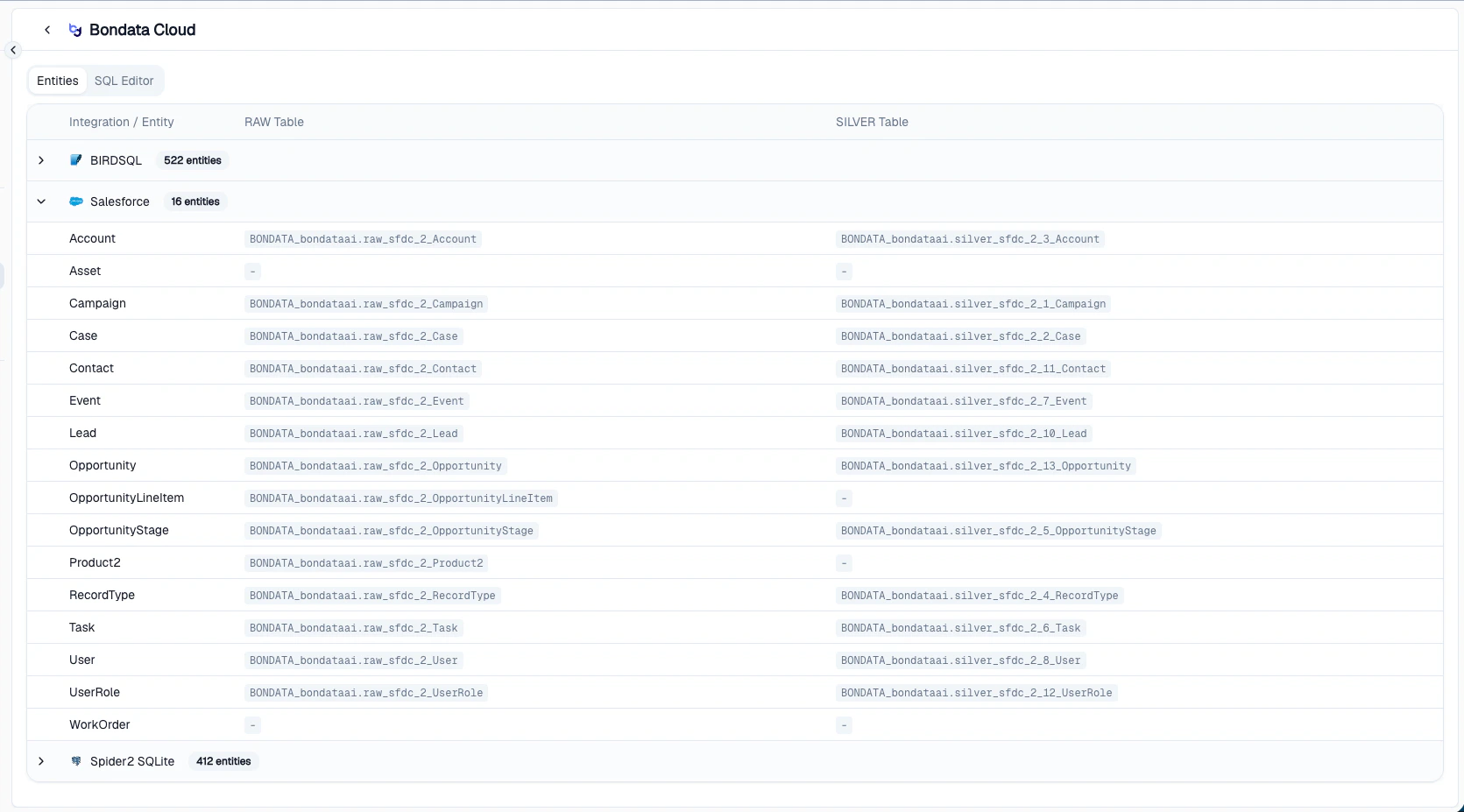
The Entities tab showing integrations with their RAW and SILVER table mappings
- See which entities have been synced and are queryable
- Verify that both RAW and SILVER tables exist for an entity
- Check object counts per table
- Quickly find the exact table name you need for a SQL query
SQL Editor
Switch to the SQL Editor tab to query your warehouse data directly. The editor includes a table browser, syntax highlighting, autocomplete, and a results panel.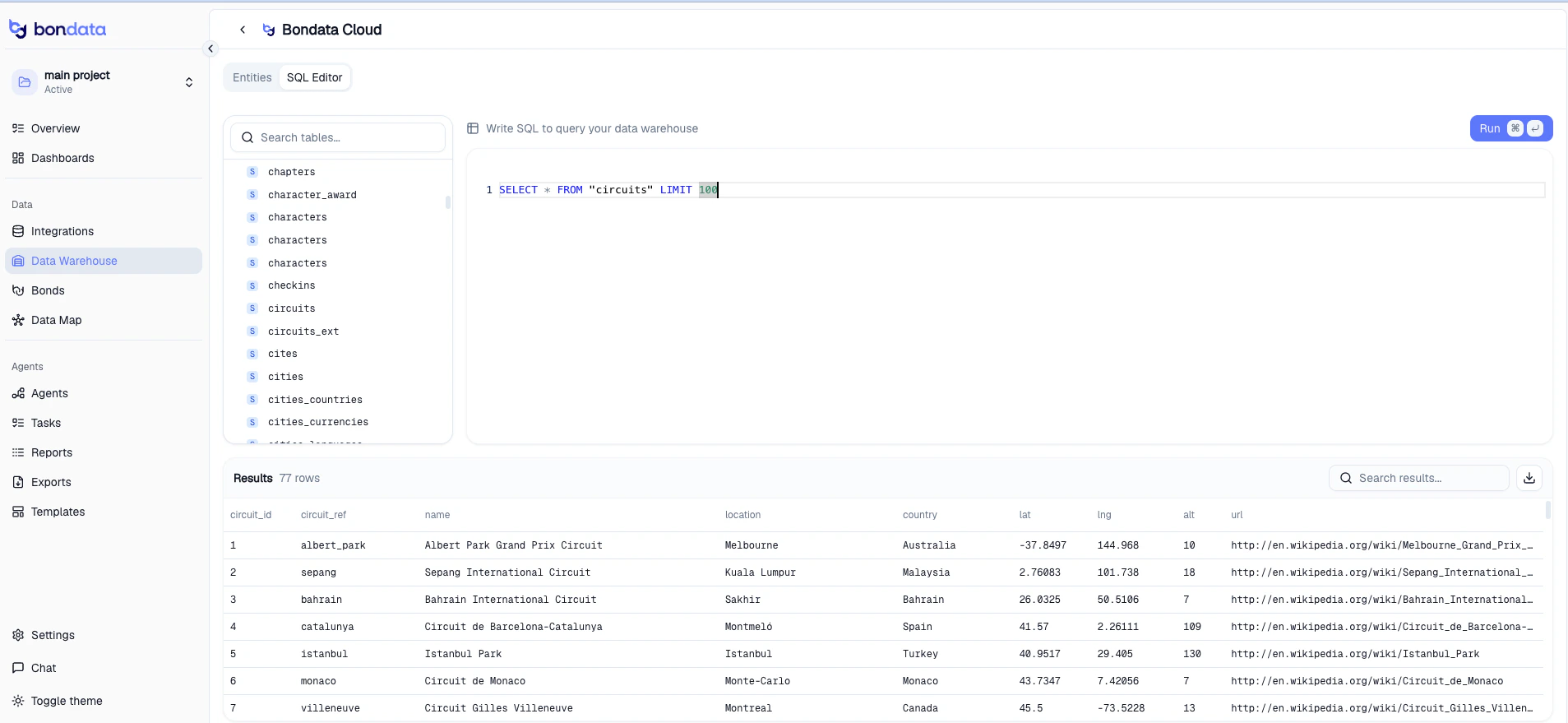
The SQL Editor with table browser, query editor, and results
Writing queries
- Write standard SQL
SELECTstatements in the editor - Press Cmd/Ctrl + Enter to execute
- Click any table name in the left sidebar to auto-generate a
SELECT * FROM "table" LIMIT 100query - Results display up to 1,000 rows - a warning appears if results are truncated
Table browser
The left panel lists all available tables grouped by type (RAW and SILVER). Use the search bar to filter by name. Click a table to preview its data instantly.Export results
Download query results as a CSV file using the export button in the results panel.Choosing a warehouse for an integration
By default, integration data is stored in Bondata Cloud. If your organization has connected external warehouses (PostgreSQL or Snowflake), you can choose where each integration’s data is stored. During integration setup, expand the Advanced section at the bottom of the configuration dialog. Under Data Warehouse, select the target warehouse from the dropdown.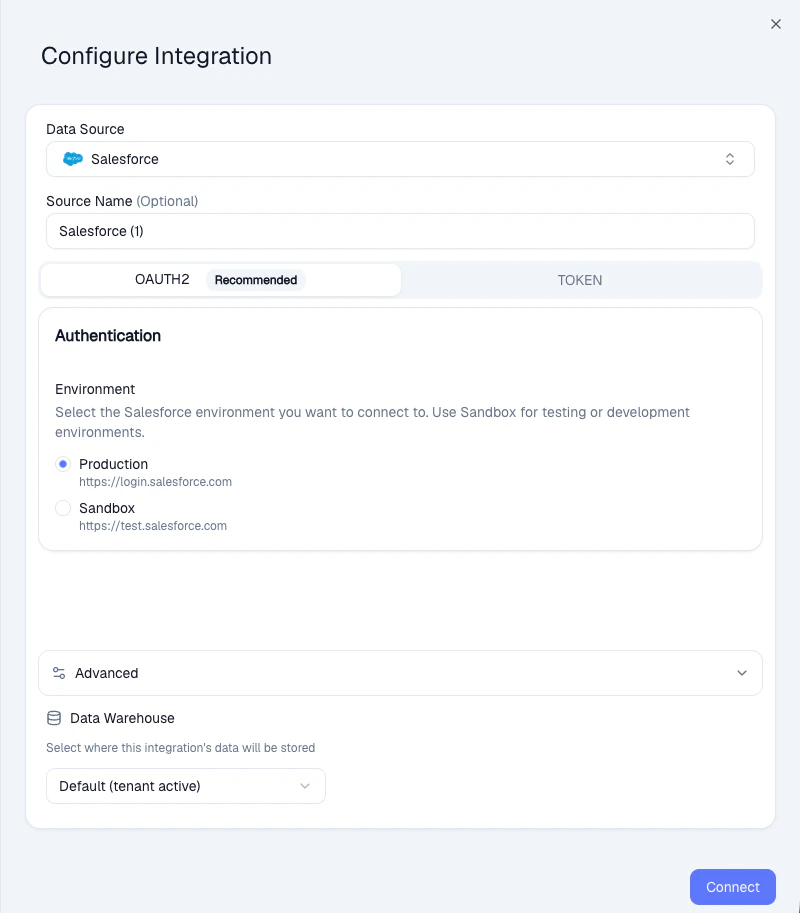
Selecting a data warehouse in the Advanced section of integration configuration
Supported warehouses
In addition to the built-in Bondata Cloud, you can connect your own data warehouse as a storage target.Available now
Coming soon
To add a warehouse connection, go to Data > Data Warehouse and click Add Warehouse. Once active, it will appear as an option when configuring integrations.
What’s next
Connect an integration
Add a data source and start syncing entities.
Managing entities
Control which datasets are active in your warehouse.