

Bonds vs. Suggested Bonds
The Bonds page
Navigate to Bonds in the sidebar to manage all your data relationships.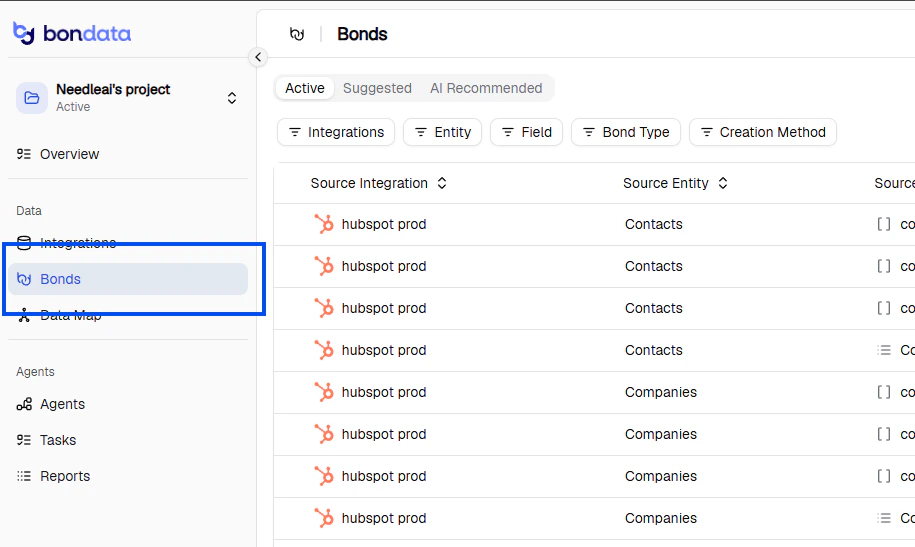
The Bonds page showing active connections
Active tab
Shows all confirmed bonds with:- Source and target integrations and fields
- The Default field used for matching
- Bond Type - probability-based or compounded
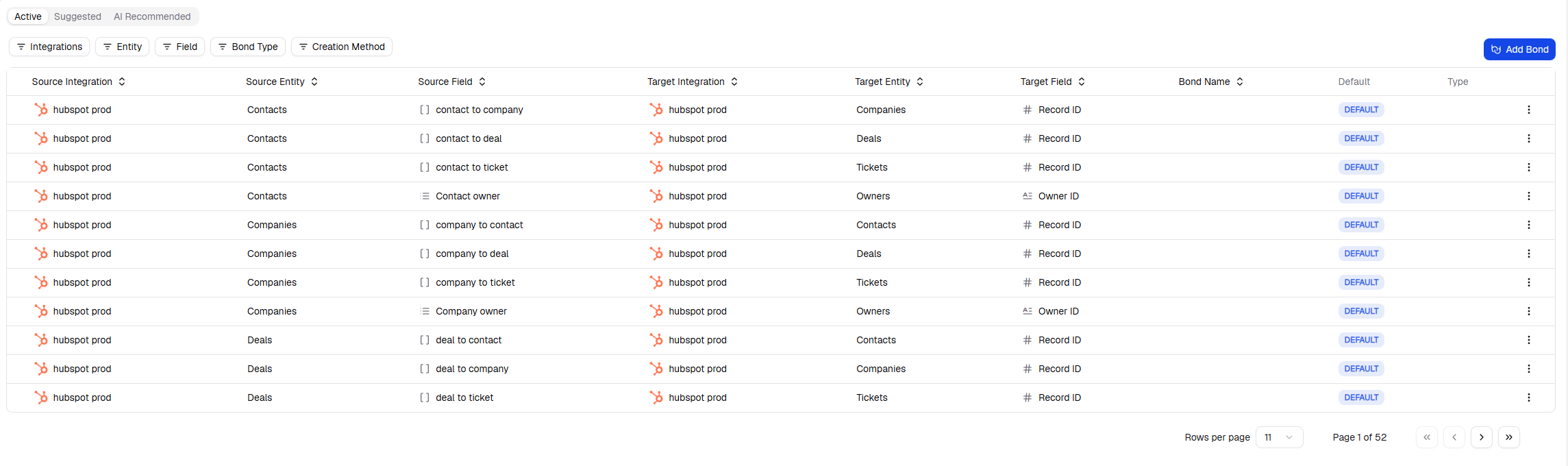
Active bonds between integrations
Suggested tab
Shows AI-discovered connections with:- Matching Values - confidence score
- Actions - approve or reject via the three-dots menu
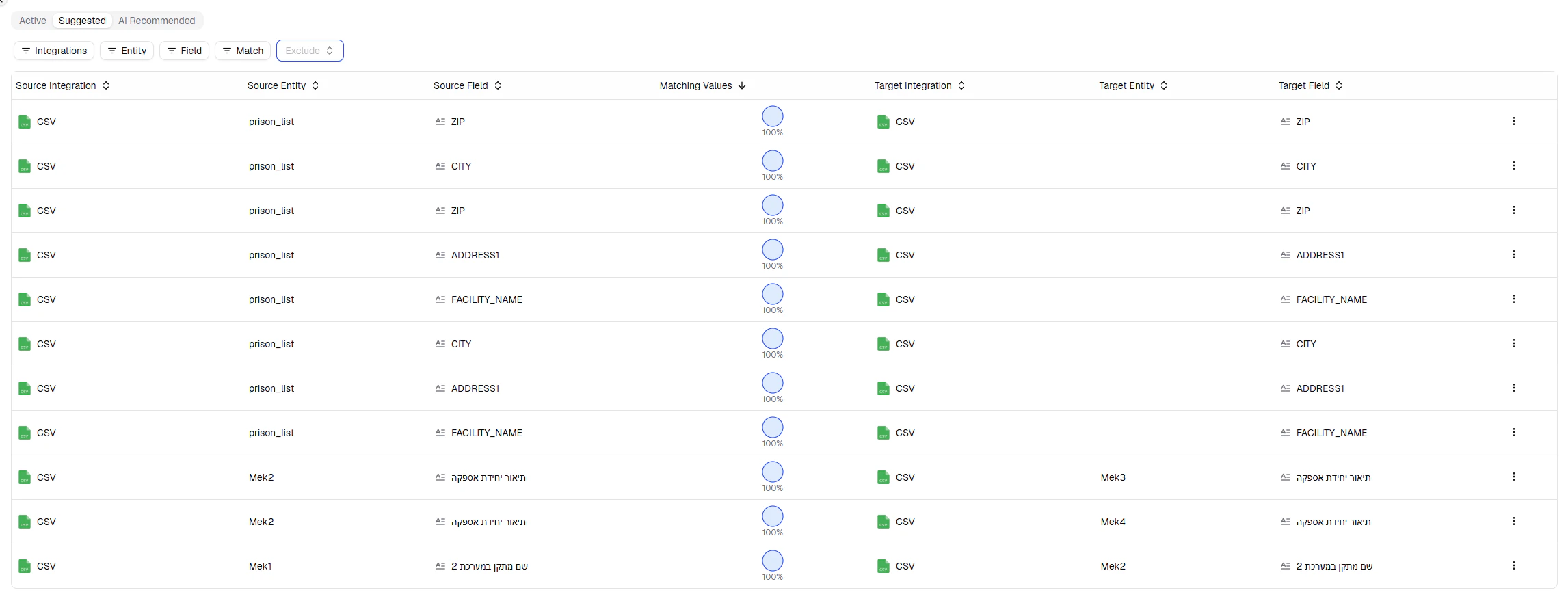
Suggested bonds with confidence scores and actions
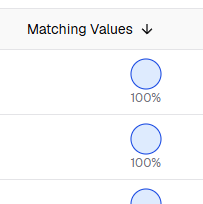
Approving a suggested bond
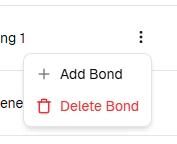
Bond detail view
Create a Bond manually
You can define custom relationships between any two systems.1
Click Add Bond
On the Bonds page, click Add Bond (top right).
2
Select systems and fields
Pick two systems, then choose which fields to link. Add multiple field pairs for complex matching (e.g., match only when both First Name and Last Name align).
3
Set matching rules
Choose exact match or partial match. For partial matches, set a confidence threshold (e.g., 90–100%) to handle typos and minor differences.
Data Map
The Data Map (Data > Data Map) provides a visual representation of all your bonds.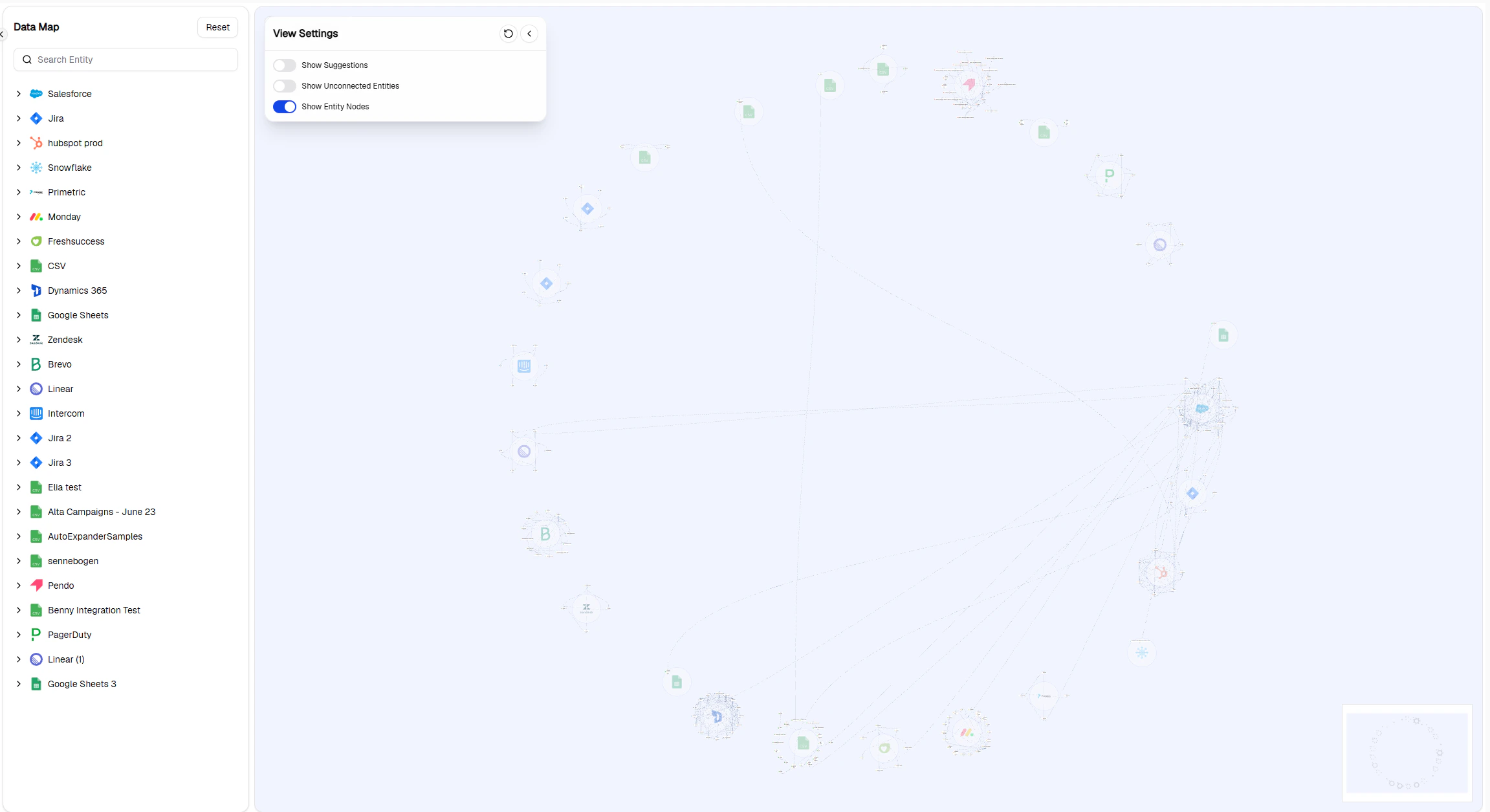
The Data Map showing system connections
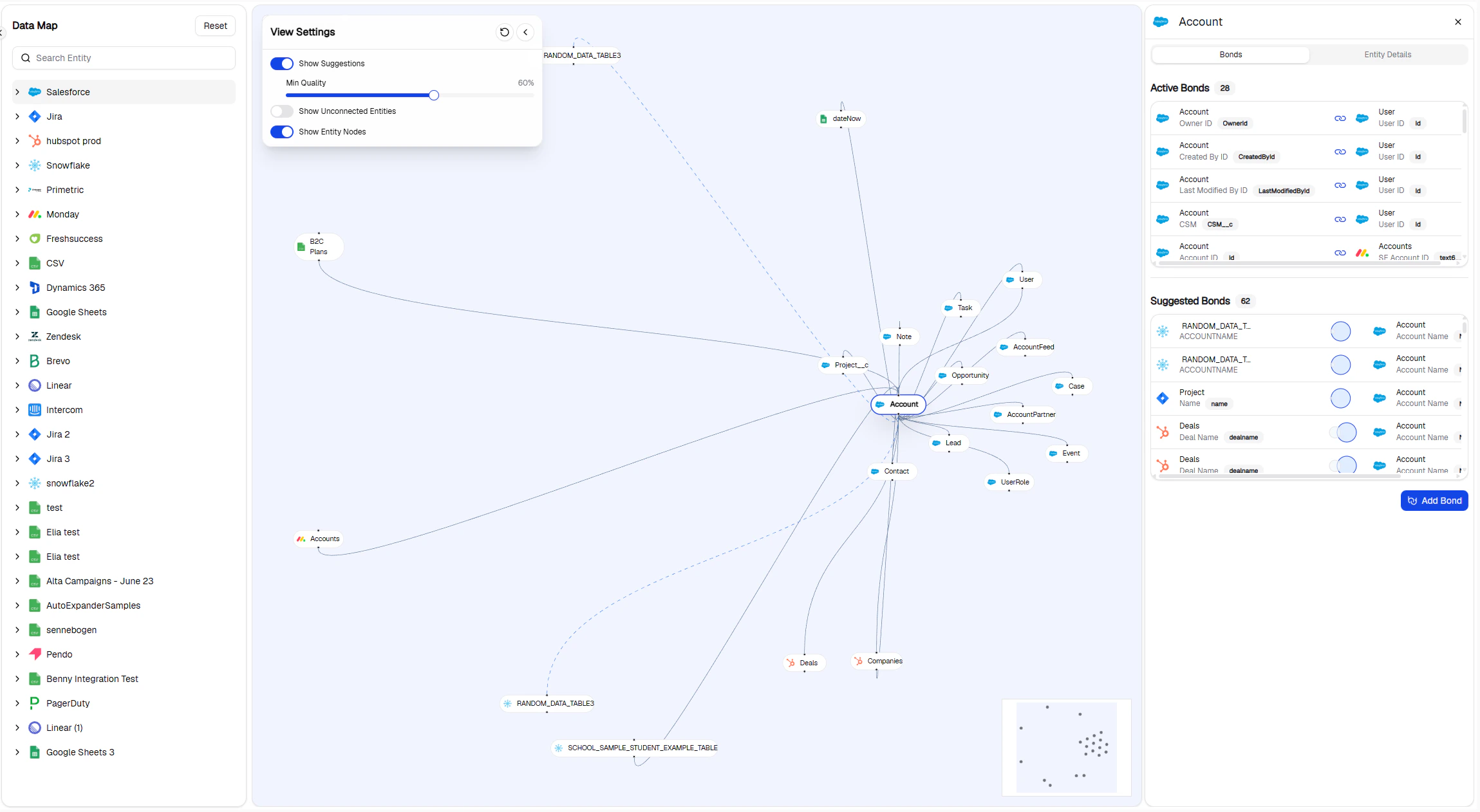
Entity drawer on the Data Map
Filtering
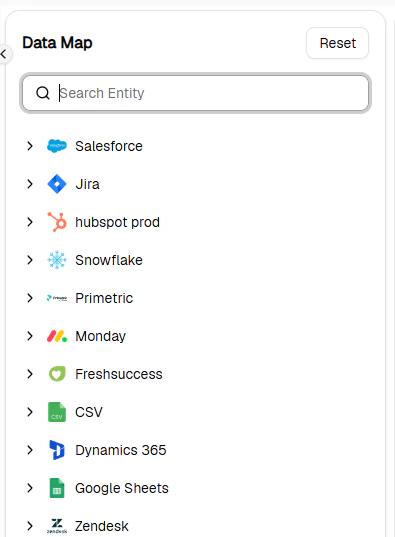
Use the search and filter panel on the left to narrow down by system, entity, or bond type.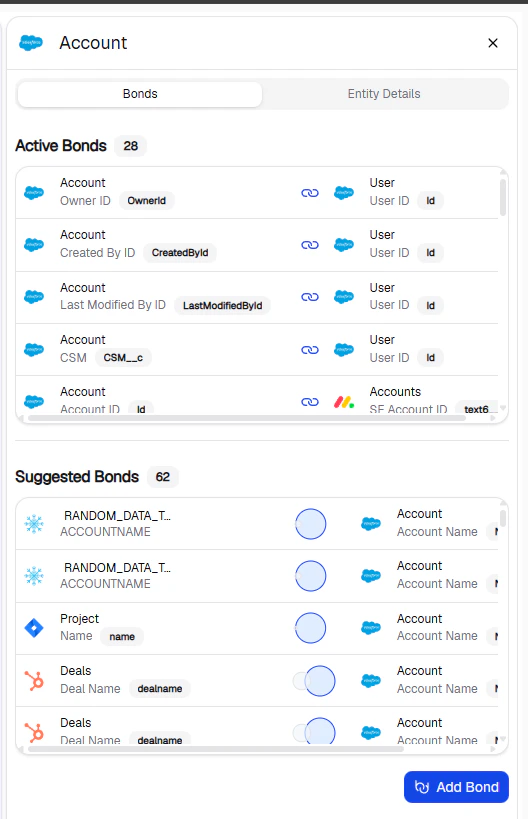
Filtering bonds by integration
Filtered results view