> ## Documentation Index
> Fetch the complete documentation index at: https://docs.bondata.ai/llms.txt
> Use this file to discover all available pages before exploring further.
# Managing Integration Entities
> Control which data from your connected systems is available in BonData
An **entity** is any distinct dataset within a connected system - a Salesforce object, a database table, a CSV file, or a Google Sheet. Managing entities lets you control exactly which data BonData works with.
## View your entities
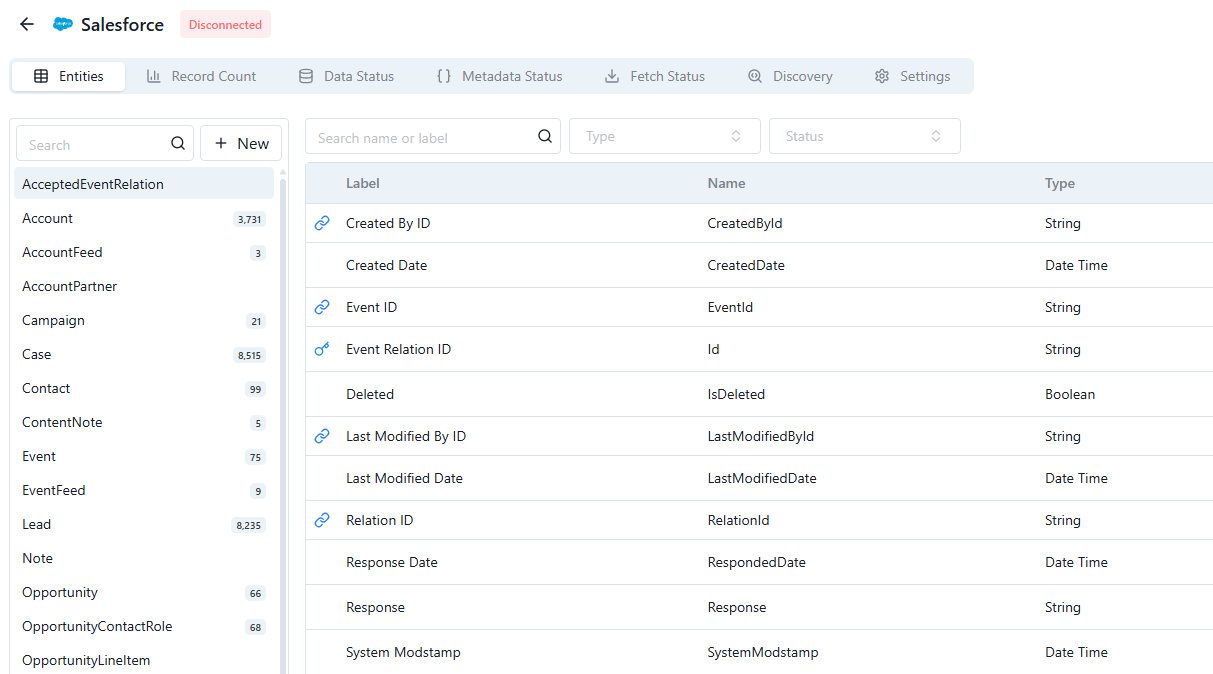
1. Go to **Data > Integrations** in the sidebar
2. Click on any connected integration
3. The left panel lists all active entities
 ## Add entities
### SaaS integrations
Standard objects (e.g., Salesforce Accounts, Contacts) are included by default. To add custom objects:
1. Click **New** at the top of the entity list
2. Search for the object
3. Click **Add**
### Databases, CSVs, and sheets
Each entity requires a **primary key**. BonData auto-detects fields that are both available across all rows and unique. You can combine multiple fields into a composite key (e.g., First Name + Last Name + Company).
## Activation time
After adding an entity, BonData fetches its metadata. This typically completes within **15 minutes**, after which the entity is fully available for use in Bonds and Agents.
## Best practices
* **Review periodically** - Remove entities you no longer need to keep things clean
* **Be selective** - Only add entities relevant to your workflows
* **Check permissions** - Ensure your integration credentials have access to the entities you're adding
## Add entities
### SaaS integrations
Standard objects (e.g., Salesforce Accounts, Contacts) are included by default. To add custom objects:
1. Click **New** at the top of the entity list
2. Search for the object
3. Click **Add**
### Databases, CSVs, and sheets
Each entity requires a **primary key**. BonData auto-detects fields that are both available across all rows and unique. You can combine multiple fields into a composite key (e.g., First Name + Last Name + Company).
## Activation time
After adding an entity, BonData fetches its metadata. This typically completes within **15 minutes**, after which the entity is fully available for use in Bonds and Agents.
## Best practices
* **Review periodically** - Remove entities you no longer need to keep things clean
* **Be selective** - Only add entities relevant to your workflows
* **Check permissions** - Ensure your integration credentials have access to the entities you're adding