> ## Documentation Index
> Fetch the complete documentation index at: https://docs.bondata.ai/llms.txt
> Use this file to discover all available pages before exploring further.
# Step 3: Review and Confirm Bonds
> Review the connections BonData discovers between your systems
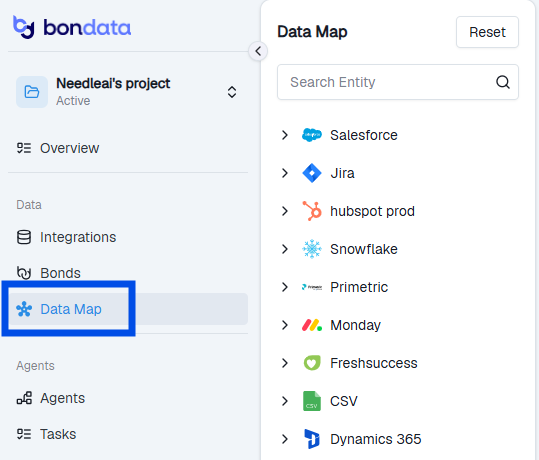
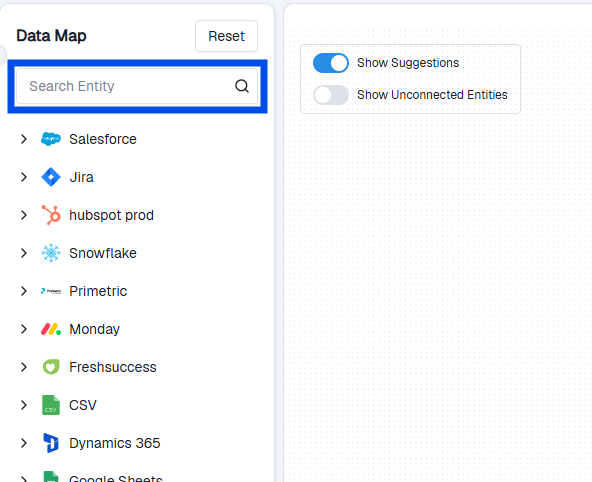
After setup completes, BonData generates a virtual map of your systems and their connections. You can find it under **Data > Data Map** in the sidebar.
## The Data Map
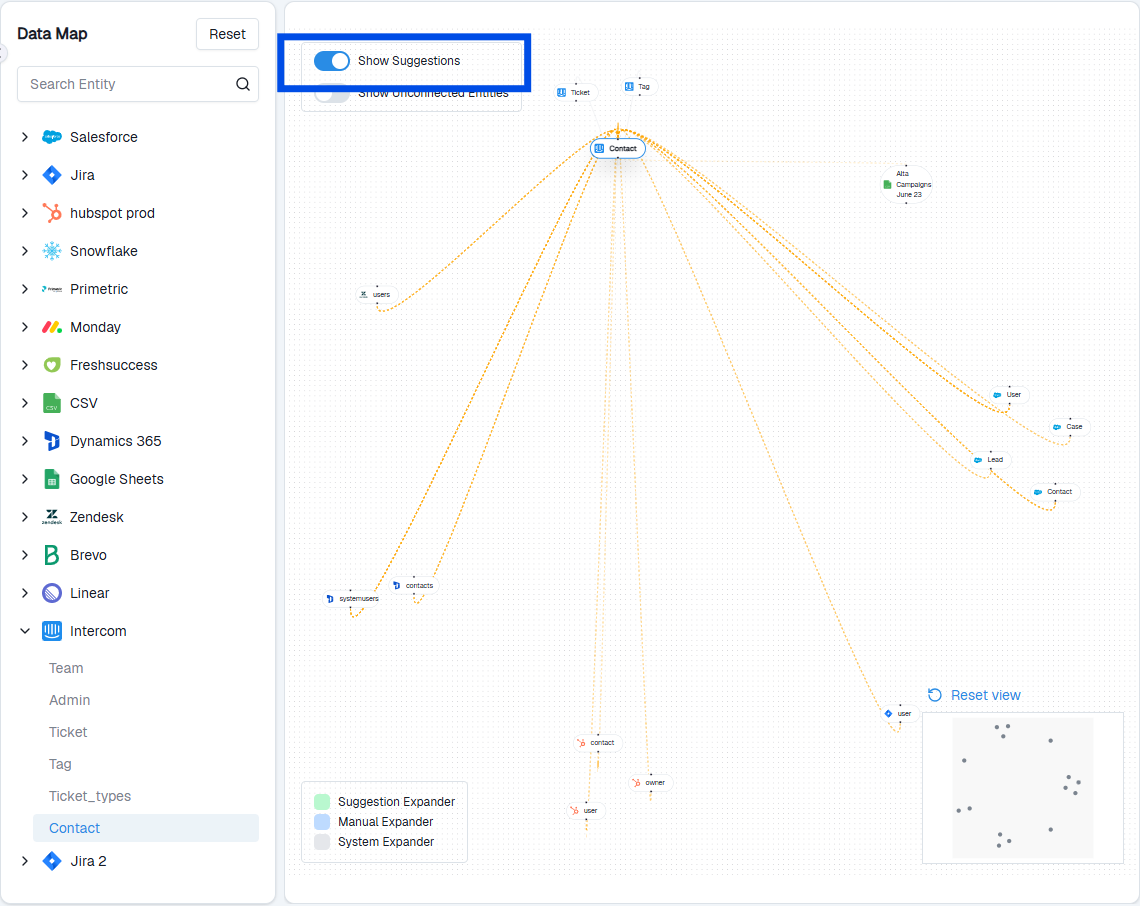
The map shows all systems and their relationships - including connections that don't exist as direct integrations. BonData's AI analyzes metadata and hashed data to surface relationships you may not have known about.
 ## Review suggested Bonds
Toggle **Show Suggestions** on the map, or go to the **Suggested Bonds** section directly. These are connections BonData has identified based on how your data and metadata align across systems.
## Review suggested Bonds
Toggle **Show Suggestions** on the map, or go to the **Suggested Bonds** section directly. These are connections BonData has identified based on how your data and metadata align across systems.
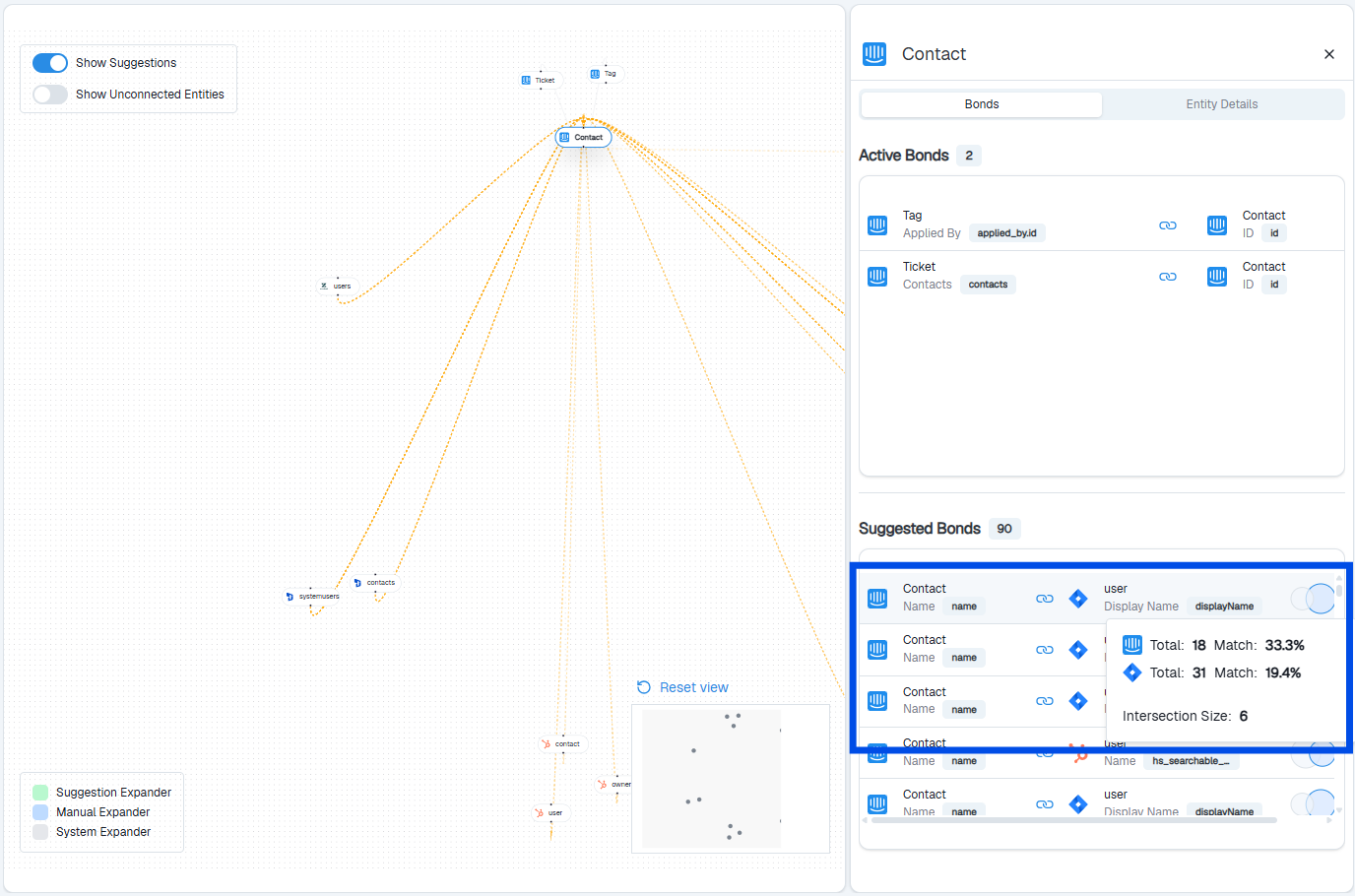
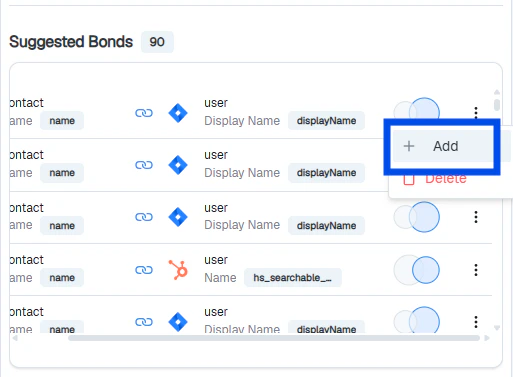
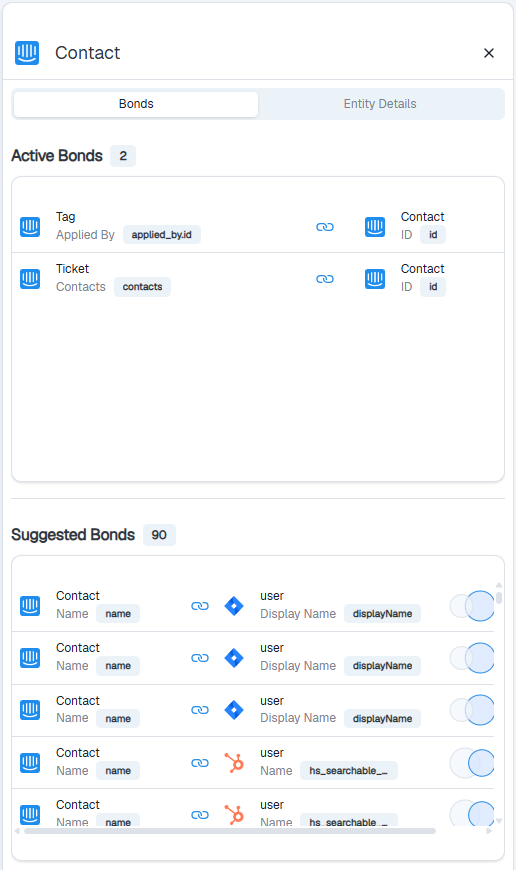
 Each suggestion has a **probability score** - BonData's confidence that the connection is accurate. Use these scores to decide:
* **Confirm** - the connection is valid
* **Reject** - the connection doesn't apply
Each suggestion has a **probability score** - BonData's confidence that the connection is accurate. Use these scores to decide:
* **Confirm** - the connection is valid
* **Reject** - the connection doesn't apply
 ## Filter and navigate
Use the search and filter panel on the left to focus on specific systems or entities.
## Filter and navigate
Use the search and filter panel on the left to focus on specific systems or entities.
 Clicking an entity on the map opens a drawer with its **Active Bonds** (confirmed) and **Suggested Bonds** (pending review).
 ## Data security
BonData does not store your raw data. It only keeps metadata, connection details, and hashed values. Data is accessed only when needed to run an Agent. The platform is GDPR and SOC II compliant.
## What's next
Create an automated workflow across your connected systems.
## Data security
BonData does not store your raw data. It only keeps metadata, connection details, and hashed values. Data is accessed only when needed to run an Agent. The platform is GDPR and SOC II compliant.
## What's next
Create an automated workflow across your connected systems.