> ## Documentation Index
> Fetch the complete documentation index at: https://docs.bondata.ai/llms.txt
> Use this file to discover all available pages before exploring further.
# Step 2: Connecting Your Integrations
> Add data sources to BonData and configure entities
BonData connects to 43+ systems - CRMs, databases, warehouses, project management tools, support platforms, spreadsheets, and more. No custom integration code required.
## Connect a data source
Go to **Data > Integrations** in the sidebar.
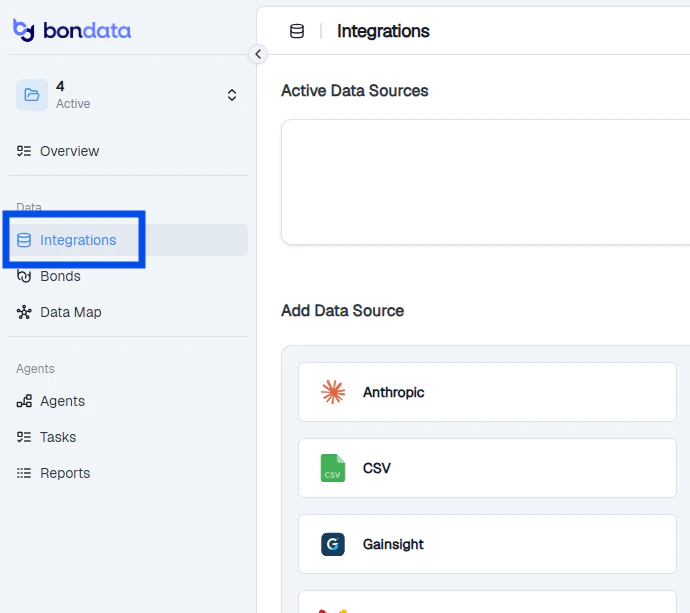 Under **Add Data Source**, find and click the integration you want. Use the search bar to filter.
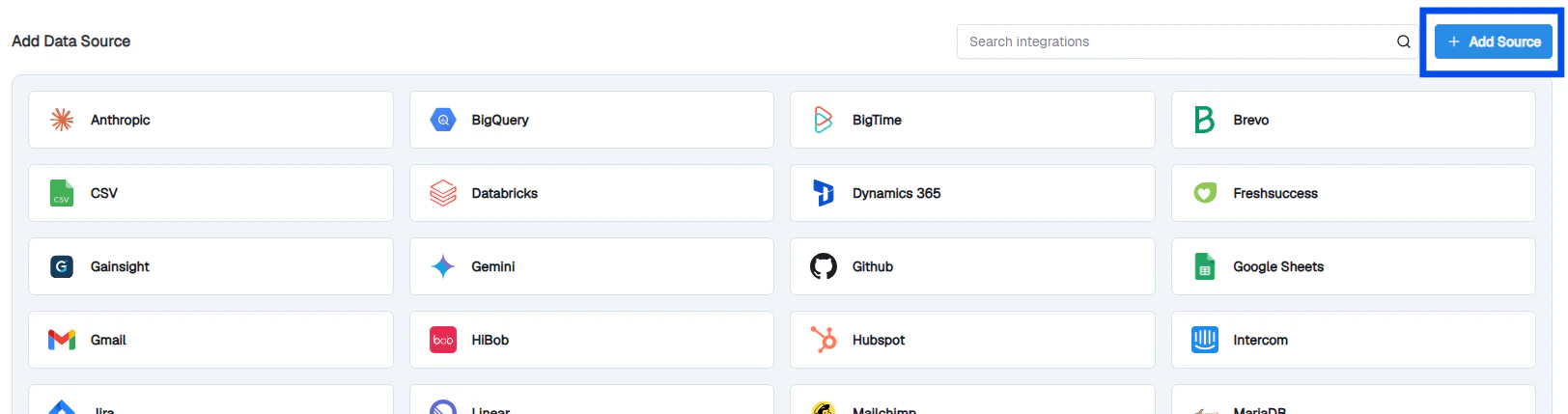 Follow the on-screen instructions. Most integrations support **OAuth** or **API key** authentication.
Use credentials with the right level of access:
* **Read-only** - sufficient for monitoring and reporting
* **Read/write** - required if you plan to create or update records via Agents
Expand the **Advanced** section at the bottom of the configuration dialog. Under **Data Warehouse**, select where this integration's data should be stored.
By default, data goes to **Bondata Cloud** - the built-in warehouse included with your account. If your organization has connected external warehouses (PostgreSQL or Snowflake), they'll appear here as well.
Follow the on-screen instructions. Most integrations support **OAuth** or **API key** authentication.
Use credentials with the right level of access:
* **Read-only** - sufficient for monitoring and reporting
* **Read/write** - required if you plan to create or update records via Agents
Expand the **Advanced** section at the bottom of the configuration dialog. Under **Data Warehouse**, select where this integration's data should be stored.
By default, data goes to **Bondata Cloud** - the built-in warehouse included with your account. If your organization has connected external warehouses (PostgreSQL or Snowflake), they'll appear here as well.
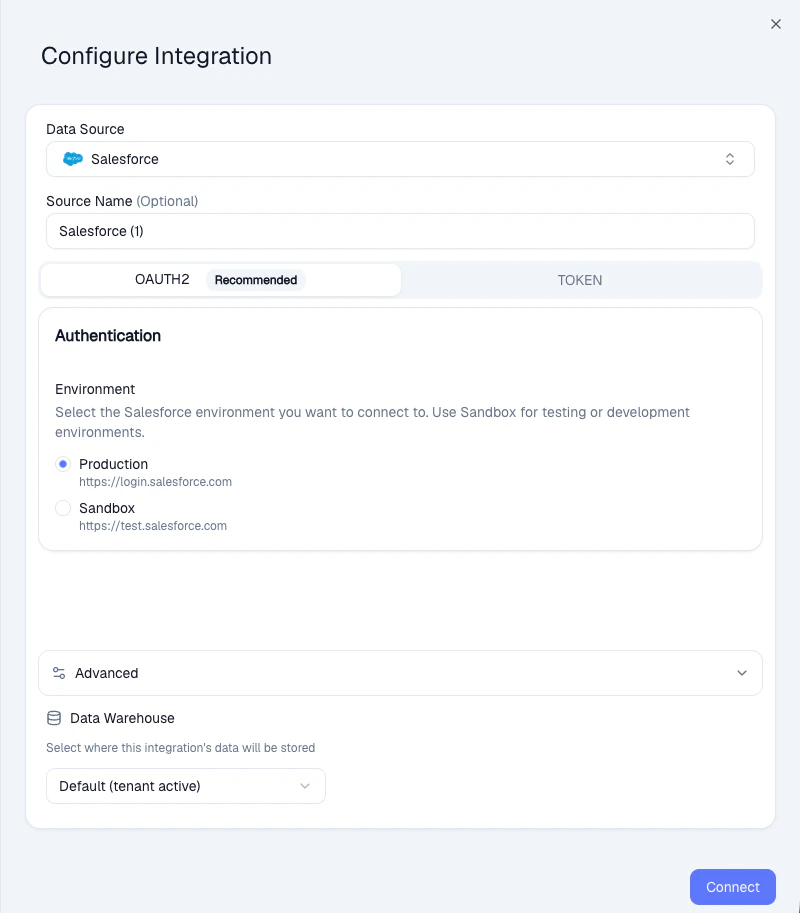 You can connect the same system multiple times - for example, separate Salesforce sandbox and production environments, or multiple Snowflake connections with different permissions.
## Add entities
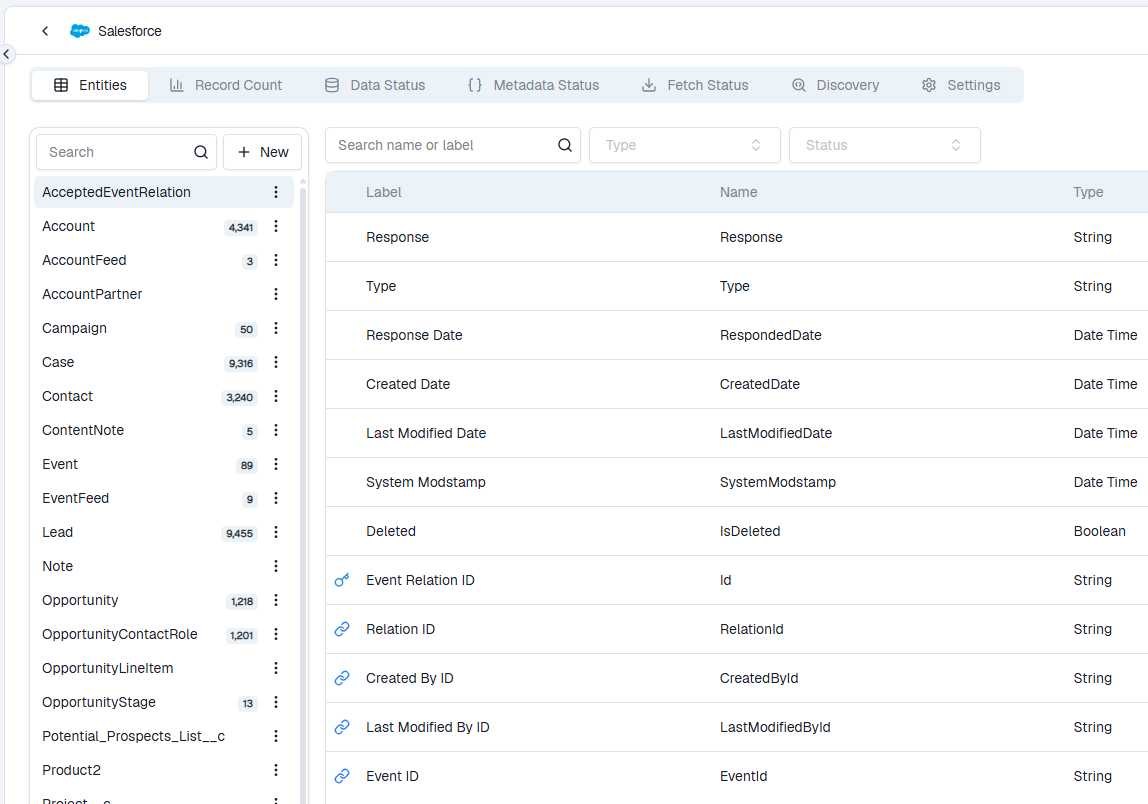
An **entity** is a table, object, or dataset within your connected system (e.g., a Salesforce object, a database table, or a CSV file).
### SaaS integrations
For systems like Salesforce, standard objects are included automatically. To add custom objects:
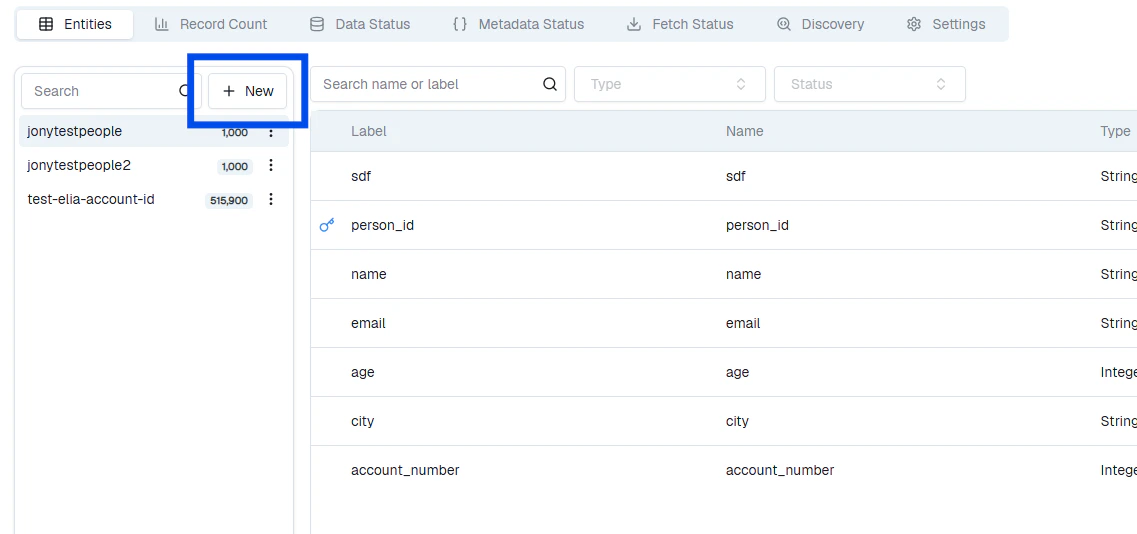
1. Click **New** at the top of the entity list
2. Search for the object name
3. Click **Add**
You can connect the same system multiple times - for example, separate Salesforce sandbox and production environments, or multiple Snowflake connections with different permissions.
## Add entities
An **entity** is a table, object, or dataset within your connected system (e.g., a Salesforce object, a database table, or a CSV file).
### SaaS integrations
For systems like Salesforce, standard objects are included automatically. To add custom objects:
1. Click **New** at the top of the entity list
2. Search for the object name
3. Click **Add**
 ### Databases, sheets, and CSVs
Click **New** to browse tables, upload CSV files, or provide a Google Sheets / SharePoint link.
Each entity needs a **primary key**. BonData auto-detects fields that are both present in all rows and unique. You can also combine multiple fields into a composite key (e.g., First Name + Last Name + Company).
### Databases, sheets, and CSVs
Click **New** to browse tables, upload CSV files, or provide a Google Sheets / SharePoint link.
Each entity needs a **primary key**. BonData auto-detects fields that are both present in all rows and unique. You can also combine multiple fields into a composite key (e.g., First Name + Last Name + Company).
 ## What's next
See how BonData discovers connections between your systems.
## What's next
See how BonData discovers connections between your systems.