> ## Documentation Index
> Fetch the complete documentation index at: https://docs.bondata.ai/llms.txt
> Use this file to discover all available pages before exploring further.
# AI Chat
> Your AI-powered data assistant - analyze, fix, and automate directly from a conversation
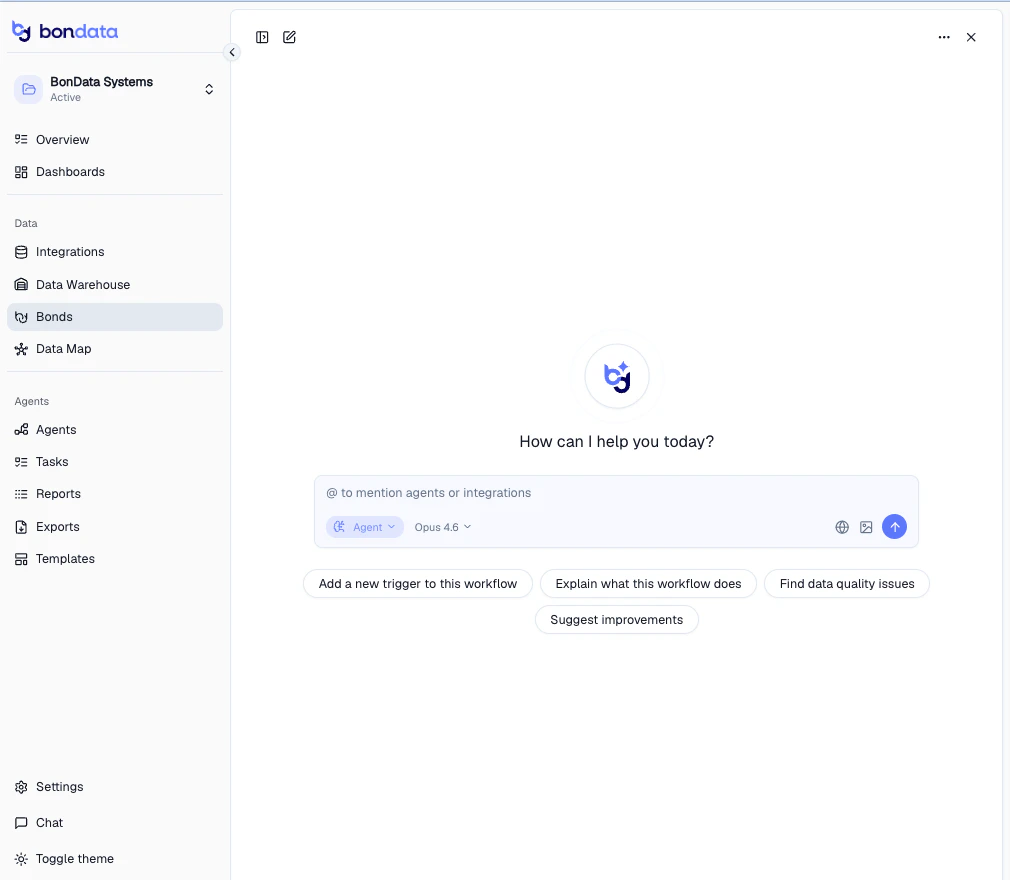
BonData's AI Chat is a conversational interface that connects directly to your data. Ask questions, run analyses, fix data quality issues, build pipelines, and more - all through natural language.
Click **Chat** in the sidebar to get started. Type your question in the input field, or use one of the quick action buttons. Use **@** to mention specific Agents or integrations for context.
 ## What Chat can do
Chat is not just a Q\&A tool - it's a full data assistant that can take action across your connected systems.
| Capability | Example |
| ------------------------ | ----------------------------------------------------------------- |
| **Analyze data** | "Show me the data distribution across my integrations" |
| **Find duplicates** | "Can you share a list of duplications in my Salesforce contacts?" |
| **Fix data quality** | "Find and fix missing email fields in my CRM" |
| **Build pipelines** | "Create an Agent that syncs new Salesforce leads to Snowflake" |
| **Run analytics** | "What's my total revenue by region this quarter?" |
| **Generate charts** | "Visualize data volume by table" |
| **Explain workflows** | "What does my lead routing Agent do?" |
| **Suggest improvements** | "How can I improve my data quality across systems?" |
Quick action buttons help you get started:
* **Add a new trigger to this workflow** - modify an existing Agent
* **Explain what this workflow does** - get a plain-language breakdown of an Agent
* **Find data quality issues** - scan your data for problems
* **Suggest improvements** - get recommendations based on your setup
## Chat modes
Switch between two modes using the selector at the bottom of the chat input.
## What Chat can do
Chat is not just a Q\&A tool - it's a full data assistant that can take action across your connected systems.
| Capability | Example |
| ------------------------ | ----------------------------------------------------------------- |
| **Analyze data** | "Show me the data distribution across my integrations" |
| **Find duplicates** | "Can you share a list of duplications in my Salesforce contacts?" |
| **Fix data quality** | "Find and fix missing email fields in my CRM" |
| **Build pipelines** | "Create an Agent that syncs new Salesforce leads to Snowflake" |
| **Run analytics** | "What's my total revenue by region this quarter?" |
| **Generate charts** | "Visualize data volume by table" |
| **Explain workflows** | "What does my lead routing Agent do?" |
| **Suggest improvements** | "How can I improve my data quality across systems?" |
Quick action buttons help you get started:
* **Add a new trigger to this workflow** - modify an existing Agent
* **Explain what this workflow does** - get a plain-language breakdown of an Agent
* **Find data quality issues** - scan your data for problems
* **Suggest improvements** - get recommendations based on your setup
## Chat modes
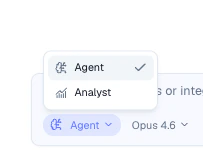
Switch between two modes using the selector at the bottom of the chat input.
 | Mode | Purpose |
| ----------- | ----------------------------------------------------------------------------- |
| **Agent** | Takes action - builds Agents, fixes data, creates records, modifies workflows |
| **Analyst** | Read-only analysis - queries data, generates charts, summarizes findings |
Use **Analyst** mode when you want to explore your data safely without making changes. Switch to **Agent** mode when you're ready to act on the results.
## Conversation history
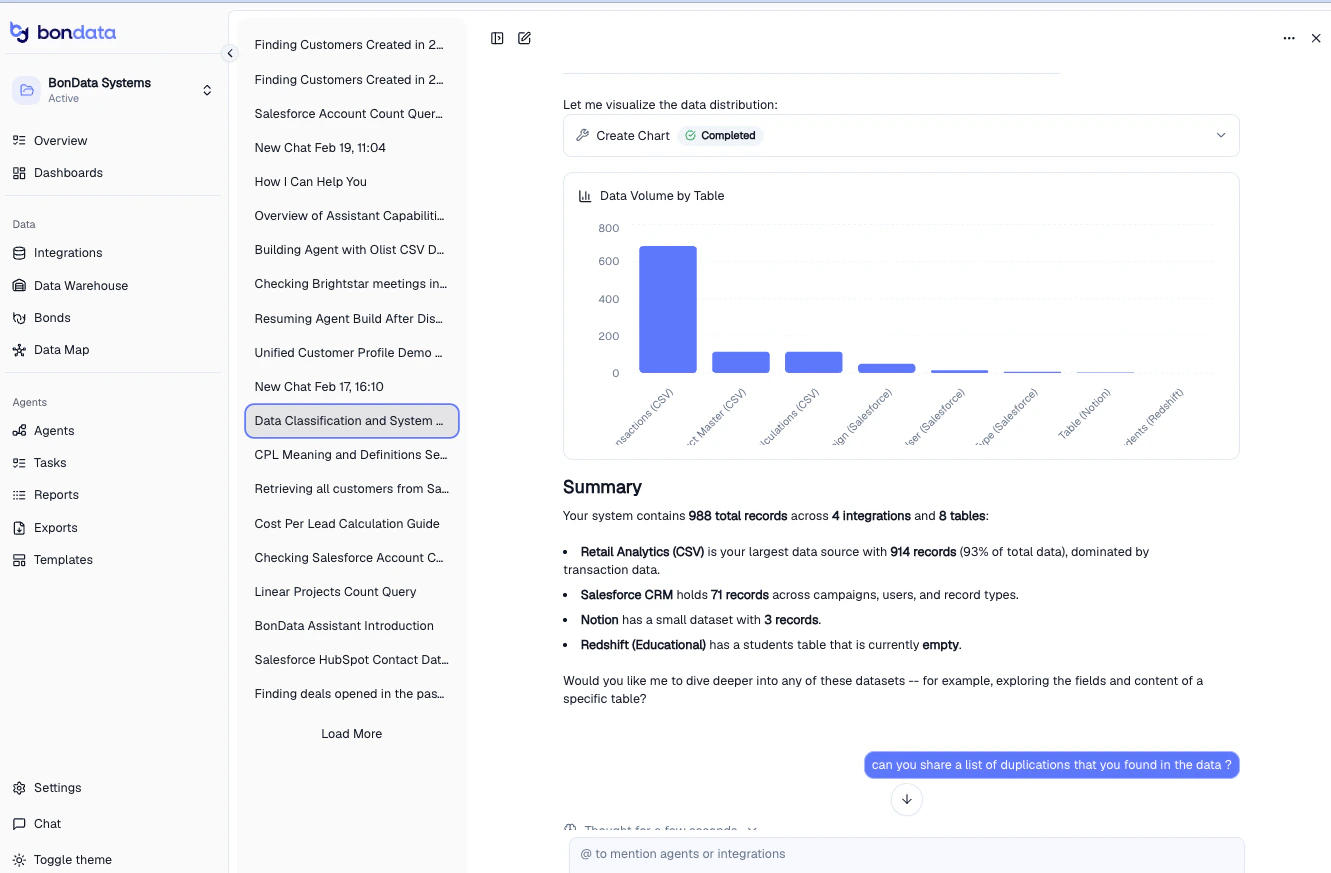
All conversations are saved in the left panel. Click any previous chat to pick up where you left off. Chat retains full context - including charts, summaries, and action results.
| Mode | Purpose |
| ----------- | ----------------------------------------------------------------------------- |
| **Agent** | Takes action - builds Agents, fixes data, creates records, modifies workflows |
| **Analyst** | Read-only analysis - queries data, generates charts, summarizes findings |
Use **Analyst** mode when you want to explore your data safely without making changes. Switch to **Agent** mode when you're ready to act on the results.
## Conversation history
All conversations are saved in the left panel. Click any previous chat to pick up where you left off. Chat retains full context - including charts, summaries, and action results.
 Chat works best when your integrations and entities are set up. The more data sources you connect, the more Chat can do for you.