> ## Documentation Index
> Fetch the complete documentation index at: https://docs.bondata.ai/llms.txt
> Use this file to discover all available pages before exploring further.
# Failure Alerts
> Get notified when an Agent node fails
Failure alerts automatically notify you when an Agent node encounters an error. Each alert includes the failed Agent, relevant record IDs, success/failure counts, and diagnostic details.
## Set up a failure alert
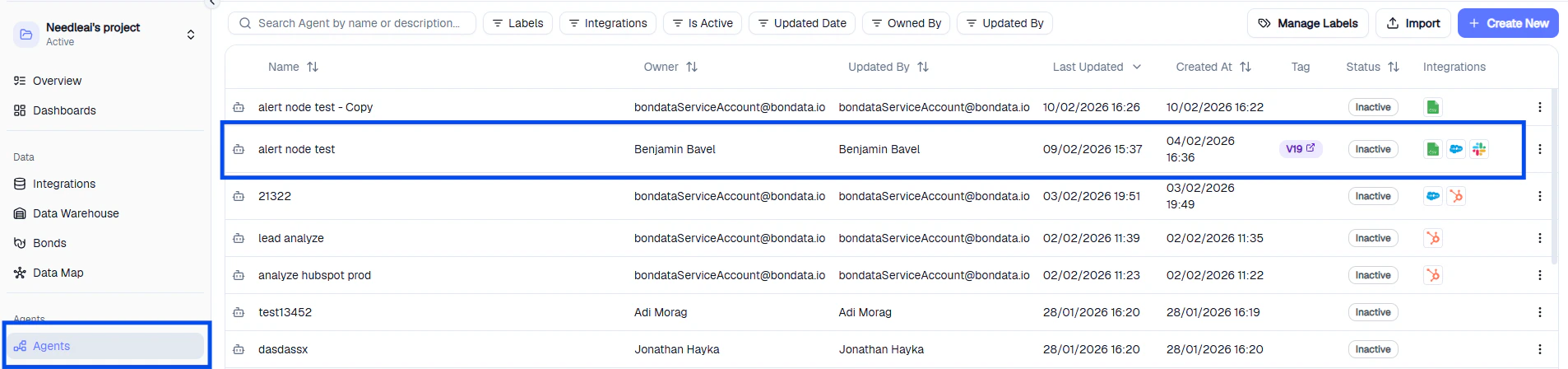
Go to **Agents** and click on the Agent you want to monitor.
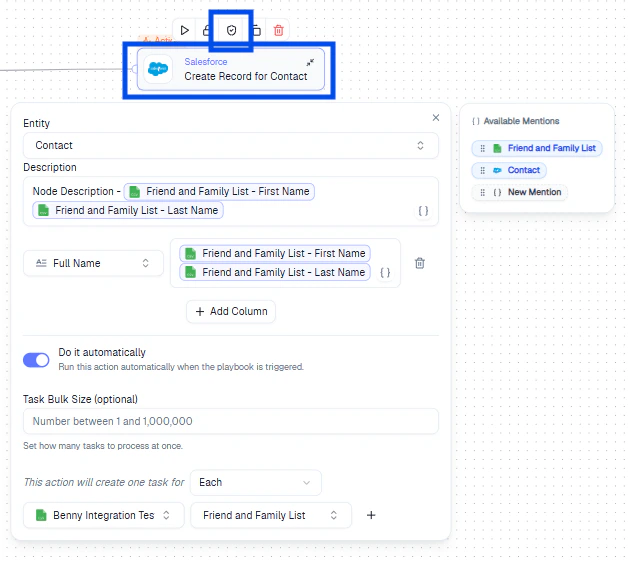
 Hover over the node you want alerts for and click the **shield icon**.
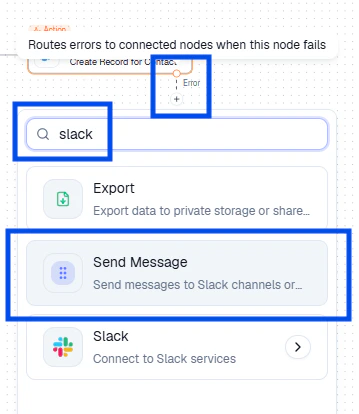
 When the shield is enabled, an **Error Route** appears on the node. Click **+** on the Error Route and select an alert action (e.g., Slack Message).
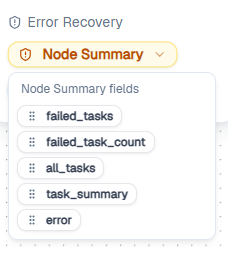
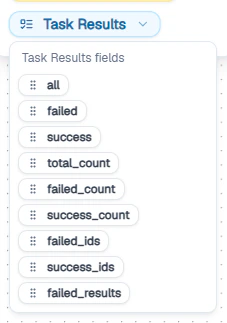
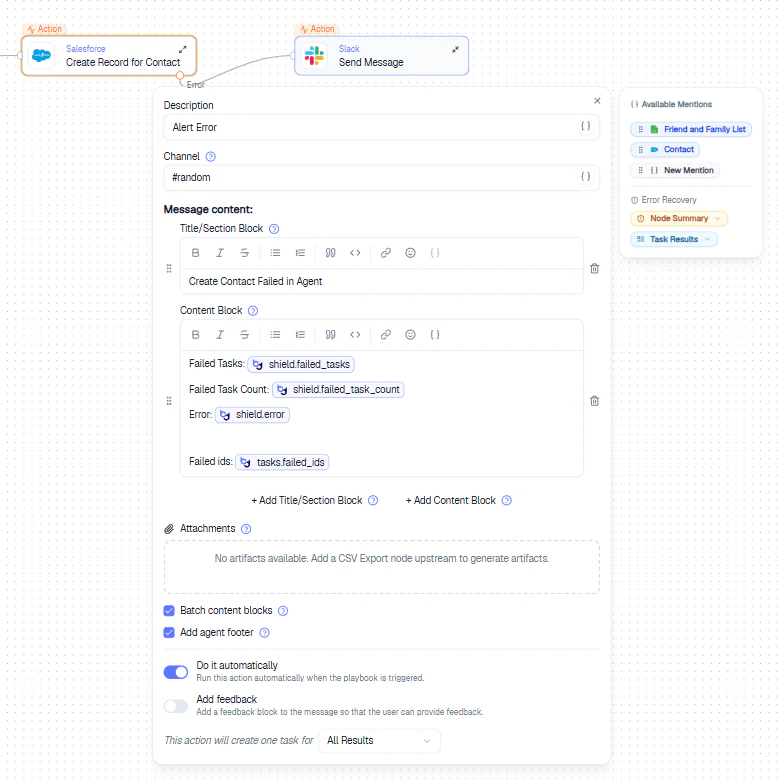 Configure the Slack Message node as you normally would. Two dynamic fields are available:
| Field | Content |
| ---------------- | ------------------------------------------------------- |
| **Node Summary** | High-level overview of the failure |
| **Task Results** | Detailed execution data (error messages, response info) |
Drag mentions from Node Summary or Task Results into your message, just like any other mention.
Configure the Slack Message node as you normally would. Two dynamic fields are available:
| Field | Content |
| ---------------- | ------------------------------------------------------- |
| **Node Summary** | High-level overview of the failure |
| **Task Results** | Detailed execution data (error messages, response info) |
Drag mentions from Node Summary or Task Results into your message, just like any other mention.
 Save the Agent and activate it to apply the alert configuration.
## Viewing alerts
Save the Agent and activate it to apply the alert configuration.
## Viewing alerts
 Once configured:
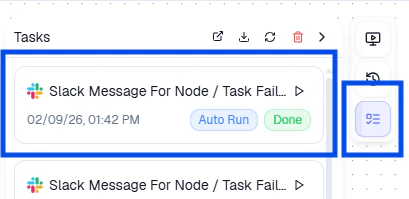
1. **Task List** - hover over the task list (top right) to see tasks generated by the Agent, including alert messages
2. **Task Details** - click any task to expand the full detail view
Once configured:
1. **Task List** - hover over the task list (top right) to see tasks generated by the Agent, including alert messages
2. **Task Details** - click any task to expand the full detail view
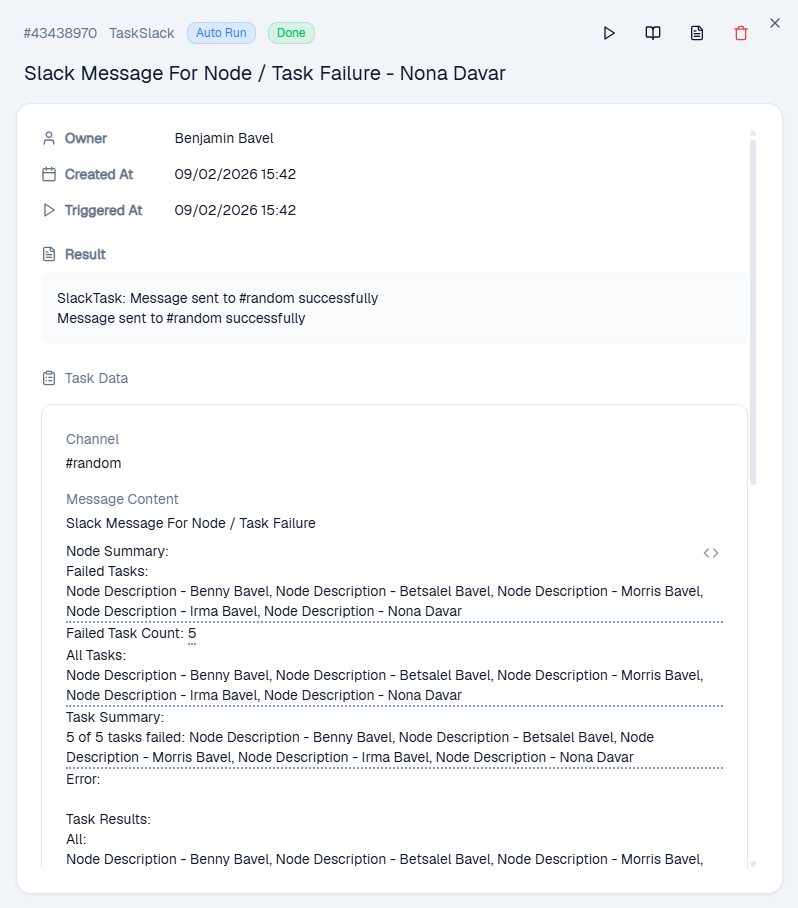 3. **Slack** - view the alert directly in your configured channel
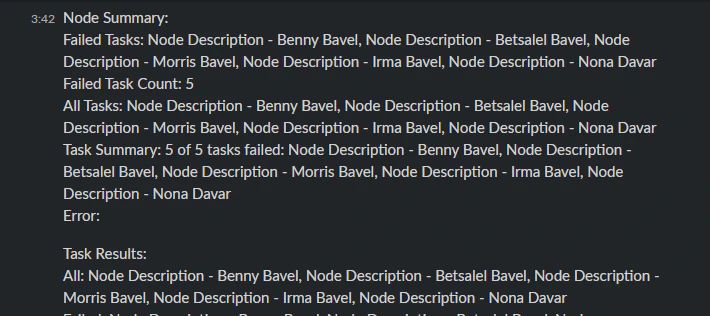 ## Example
An Agent creates Salesforce contacts. One node maps the **Full Name** field - but Salesforce requires **First Name** and **Last Name** separately. The record creation is rejected. With a failure alert configured, a Slack message fires immediately with the error details, so you can fix the field mapping.
Use **Node Summary** for quick alerts and **Task Results** when you need full error details for debugging.
## Example
An Agent creates Salesforce contacts. One node maps the **Full Name** field - but Salesforce requires **First Name** and **Last Name** separately. The record creation is rejected. With a failure alert configured, a Slack message fires immediately with the error details, so you can fix the field mapping.
Use **Node Summary** for quick alerts and **Task Results** when you need full error details for debugging.